1. Prepare your two wallets
Your vault is the account that holds the assets. Your delegate is a different wallet you control and use day to day. Copy the delegate’s public Solana address from its Receive screen. Keep both wallets’ recovery phrases private.
Using a cold wallet? Follow the hardware-wallet setup guide. Ledger through Phantom is a supported provider route, with physical-device testing still pending. Solbound does not require the vault to sign a login message.
For a live test, select Solana devnet and fund the vault with test SOL. Devnet SOL has no monetary value. The delegate can sign in to a participating website with a zero balance. Solana devnet faucet · Other faucets
Practicing first? Choose a scope and select Try with a sample wallet. On the next screen, use the sample address button. The screenshots below show this browser-only practice flow.
What you pay
The vault pays the current service fee each time it creates or renews a v3 delegation. The initial rate is 0.032 SOL. It was chosen to be approximately $2.50; its USD value changes with SOL and is not guaranteed. The registry’s configuration sets the current rate and recipient. Check them in each review, including for additional grants from the same vault. On devnet the entire transaction uses test SOL. A sample grant stays in your browser and uses no SOL.
- Solbound service fee
- My Delegations reads the exact SOL amount from the registry’s on-chain configuration. Your signature approves that amount and configuration version. The program charges the same amount. No price feed or live USD conversion is used for new v3 grants.
- Network fee and record deposit
- Solana charges a transaction fee. A new on-chain record also needs a deposit. Closing a grant returns its record deposit to the vault. The persistent vault-state deposit stays in its account. A renewal can reuse existing records.
- Signing in and revoking
- Connecting a wallet, signing a partner login message, checking access and revoking carry no Solbound service fee. A revocation still requires a Solana network fee.
Before you approve, compare the exact SOL service fee, recipient, network fee and maximum record deposit. Solbound refreshes the transaction’s network validity just before opening the wallet prompt, while keeping the reviewed service fee and permission unchanged. A slow approval can still outlast that validity. If the fee settings or other reviewed costs change, check a new review before signing. Pricing and recipient details
The paying vault and fee recipient must be different accounts when the service fee is above zero. This applies even if the delegate is another wallet. If you operate the protocol and also want to delegate from its fee-receiving account, use a different vault or have the authorized settings wallet change the recipient first. Do not move valuable assets just to work around this rule.
2. Choose what the delegate can represent
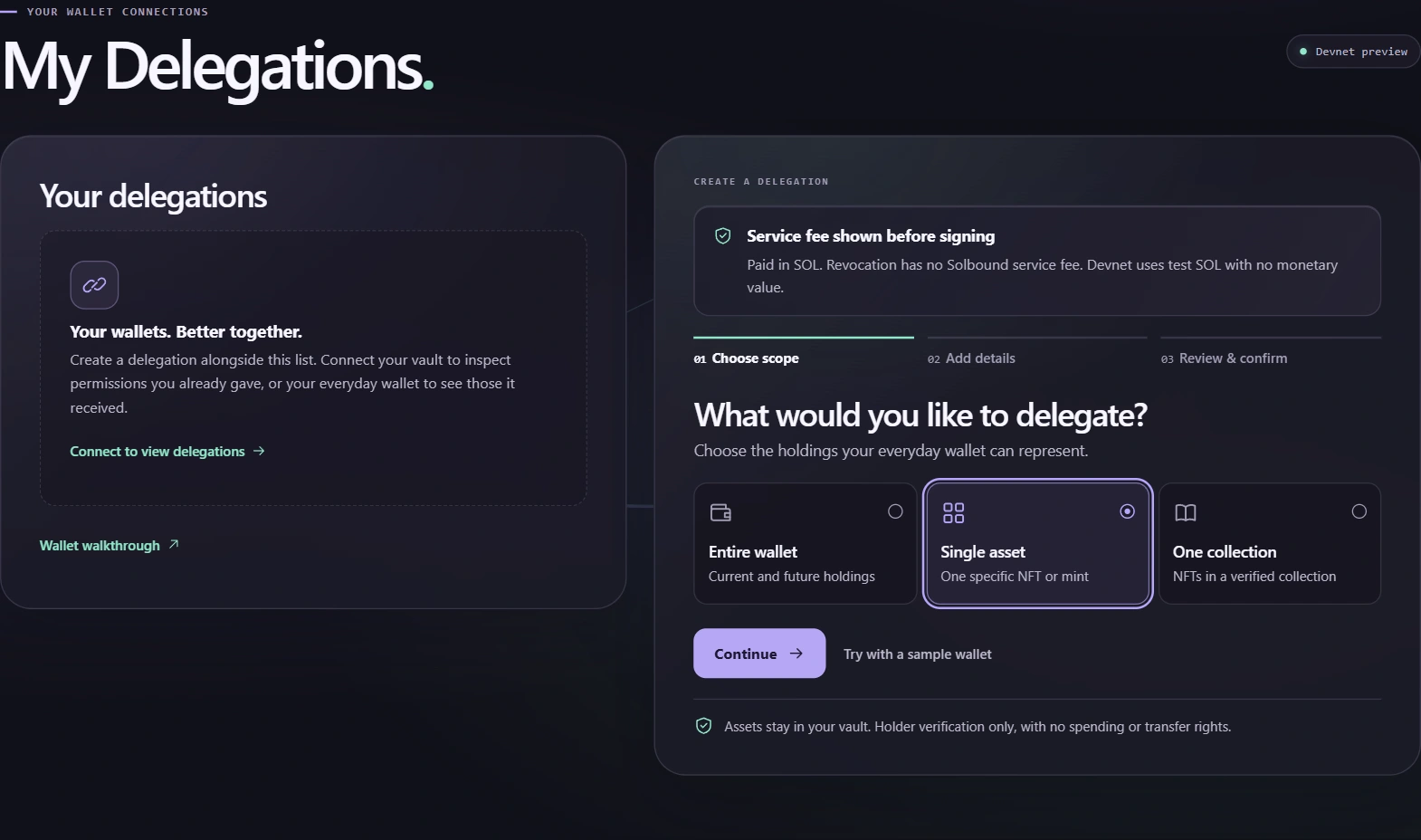
In My Delegations, select Create delegation and choose the smallest scope that covers what you want to do.
- Entire wallet
- Lets an integrated app verify eligible current and future holdings from this vault. Choose this for a general wallet link.
- Single asset
- Applies to one NFT or token mint. Use the mint address from the asset’s details. The token account that stores your balance has a different address.
- One collection
- Applies to eligible NFTs in one verified Metaplex collection. Use the collection mint. The website checks current membership and ownership when you ask for access.
Select Continue, choose your wallet provider and connect the vault account.
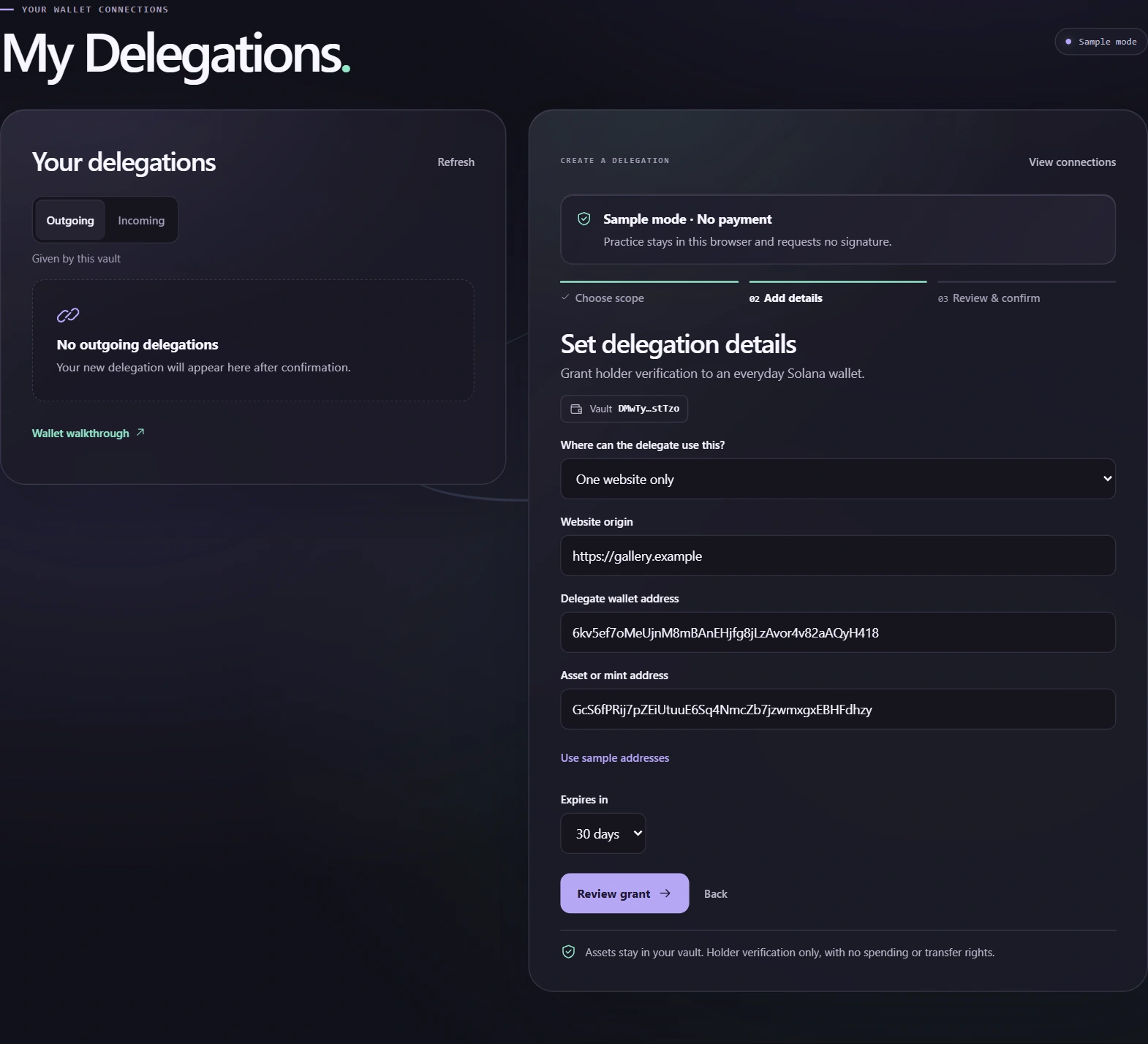
3. Set the delegate, audience and expiry
- Check the vault shown under Set delegation details.
- Choose All apps that integrate Solbound to reuse the grant, or One website only and enter its exact HTTPS origin, such as
https://gallery.example. Subdomains count as separate origins. Leave off the page path. - Paste the everyday wallet’s public address. For asset or collection scope, also paste the appropriate mint address.
- Choose 1 day, 7 days or 30 days. Select Review grant.
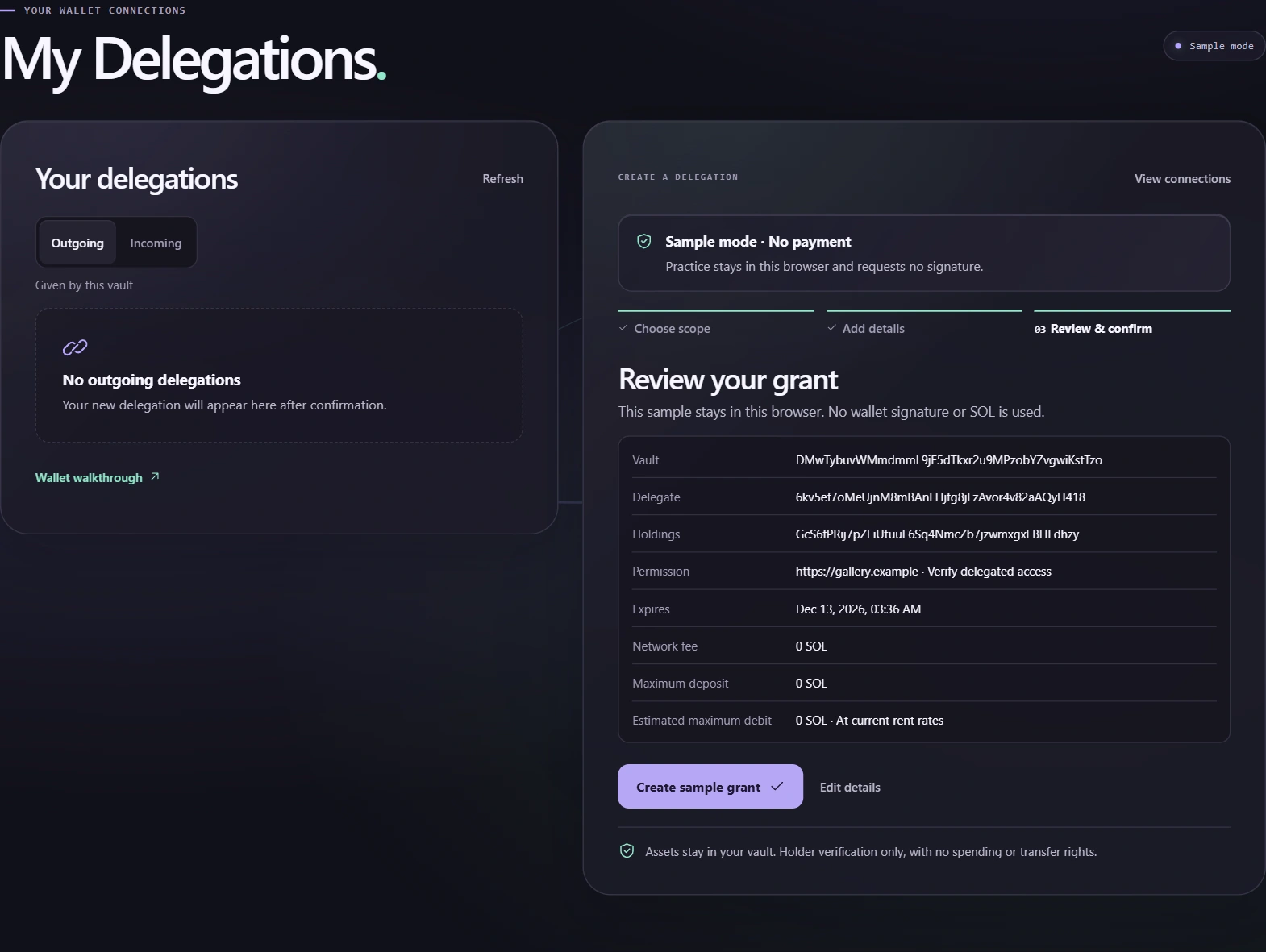
4. Review and sign from the vault
Compare the full vault and delegate addresses, holdings, allowed apps and expiry. Check the exact SOL service fee, recipient, network fee and maximum deposit. Verify the registry address against the deployment reference. The grant publicly links both wallets.
Select Sign devnet grant and inspect your wallet’s prompt. Hardware devices may not display the full meaning of this custom program. Read the signing limits and cancel if you cannot verify the request or see an unexpected asset transfer. Wait for Delegation confirmed and use View transaction to see the finalized receipt. In practice mode the button reads Create sample grant.
If signing or confirmation is interrupted
The fixed SOL fee has no price-quote countdown and needs no Pyth subscription. Solana transactions still have a limited network lifetime. Solbound does not automatically request a replacement signature.
- Before submission. If you cancel the wallet prompt, no service payment is sent. If the request expires before submission, follow the message in My Delegations and explicitly approve a fresh request. If the app asks for a new review, compare the fee, recipient and grant details again.
- After signing. If you see Checking your delegation transaction, use View transaction receipt to open the original signature in devnet Explorer, or choose Check confirmation in My Delegations. A pending result is not proof of failure. Do not create the same grant again while its result is uncertain.
- After a reload or disconnect. Return to My Delegations in the same browser and reconnect the same vault. Solbound saves the public receipt before submission and resumes checking it. Another paid approval stays blocked there while the receipt is unresolved. Keep browser storage enabled and do not clear it to bypass the check.
- When the result is known. A finalized success refreshes Your delegations. A finalized failure rolls back the service payment and grant changes, though a network fee may remain. If the app reports failure or expiry, follow its instructions to review and sign again. If the provider is unavailable or cannot establish the result, keep checking the original receipt before another payment.
Recovery uses your browser’s saved public receipt and the network provider’s history. It does not coordinate separate browsers or devices. Keep the original signature if you switch devices, and check it before approving another create or renewal. A separately signed successful renewal is another paid action. Never share a recovery phrase or private key to resolve a pending transaction.
5. Sign in with the everyday wallet
Visit a website that has enabled Solbound. Switch to the delegate, connect it there and sign its one-time sign-in message. Check the domain and wallet address in the message. The site checks your grant and any holdings required for its feature.
An all-apps grant is reusable across participating sites. Each website owner must first integrate the verifier. A grant by itself cannot turn on access at a website. If a site requires a specific NFT, the vault must still own a qualifying NFT.
6. Inspect, renew or revoke a grant
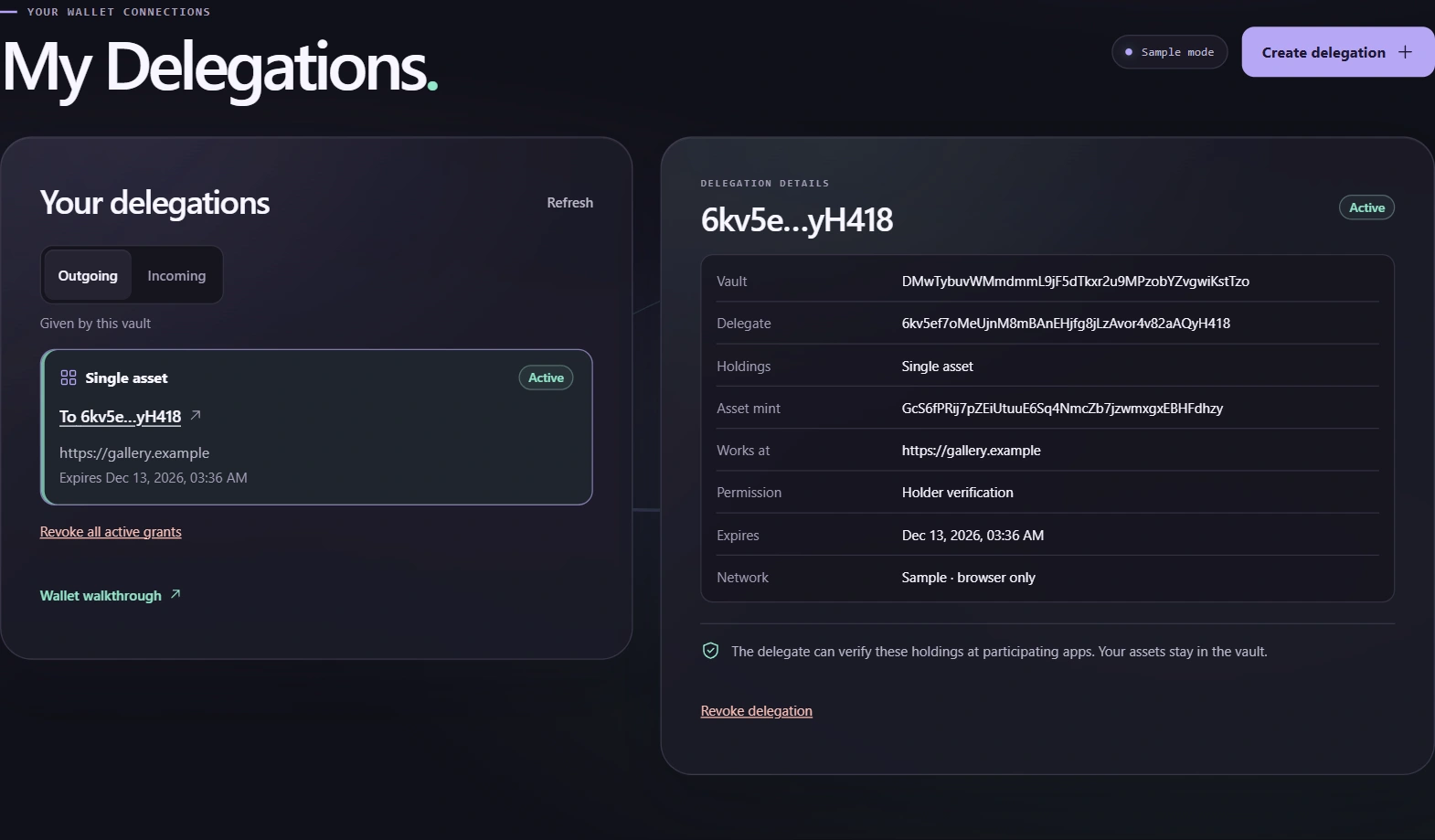
Open My Delegations. Connect the vault and choose Outgoing for grants you issued, or connect the everyday wallet and choose Incoming for grants it received. Select a grant in Your delegations to see its full addresses, scope, allowed apps and expiry.
Legacy v1 and USD-priced v2 grants remain in their original registries. You can still inspect or revoke them. New grants use v3; websites must integrate the matching registry. SDK 0.3.0 checks v3 by default. An existing v1 or v2 grant does not become a v3 grant automatically.
- Renew. Select Create delegation and create a grant with the same vault, delegate, scope, asset and audience. A v3 renewal updates its expiry and pays the current fixed SOL service fee again. Choosing a different scope or audience creates a separate grant that may overlap.
- Revoke one. Select an active outgoing grant, choose Revoke delegation in its details, then confirm and sign with the vault. On devnet this closes the record and refunds its grant deposit. Other matching grants can still allow access.
- Revoke all active grants. This invalidates earlier grants issued by this vault in that registry, including grants to other delegates. Their record deposits stay on-chain until individually closed. The workspace checks v1, v2 and v3 separately when you have grants in more than one registry.
- Expired grant. Verification ends at the stored expiry. A record or its history can remain visible. The recovery instructions cover closing remaining records.
When something looks wrong
- The fee configuration changed or the transaction expired
- Follow the app’s request for a fresh review or signature and check the exact SOL fee and recipient. A settings change invalidates an older review. New v3 grants have no price-feed freshness requirement. If a signature was already submitted, follow the confirmation recovery steps before another payment.
- The fee changed or grants are paused
- A change to the fee, recipient or pause setting cancels any outstanding review. Check the new terms before signing. During a pause you can still inspect and revoke existing grants and sign in to participating websites.
- The simulation failed
- Check that the connected vault has devnet SOL for the service fee, network fee and required deposits. Verify your addresses and expiry, then request a fresh review.
- My vault is also the fee recipient
- A positive-fee create or renewal cannot pay its own vault. Use a different vault or ask the protocol administrator to configure a separate fee-receiving account. This restriction concerns the paying vault, even when the delegate is a different address.
- The wallet changed the transaction or the review expired
- Return to details and review again with the same vault on devnet. If a transaction signature was already shown, check it in Solana Explorer on devnet before retrying.
- The grant is active, but a site denies access
- Confirm the site supports Solbound on devnet. Sign in with the delegate, check the site’s exact origin, and confirm the vault still meets the site’s asset rule. When automatic discovery misses a holding, use the site’s specific-vault lookup.
- I lost my delegate or vault
- If you control the vault, revoke the affected grants and grant access to a new delegate. Only the vault can change its grants. If you lose the vault signing key, existing grants reach their recorded expiry.